

Colour mode
Create your first competition
This guide takes you through a first competition from start to finish. It is a short path. Each step tells you where to go, and later guides will go into detail.
Before you start
- Your site is set up. See Run the Setup Wizard.
- You have a picture for the competition and your prize details ready.
- You have decided the ticket price, how many tickets you will sell, and how many one person can buy.
Create the competition
In the admin menu, open Competitions, then Competitions.
Click New competition.
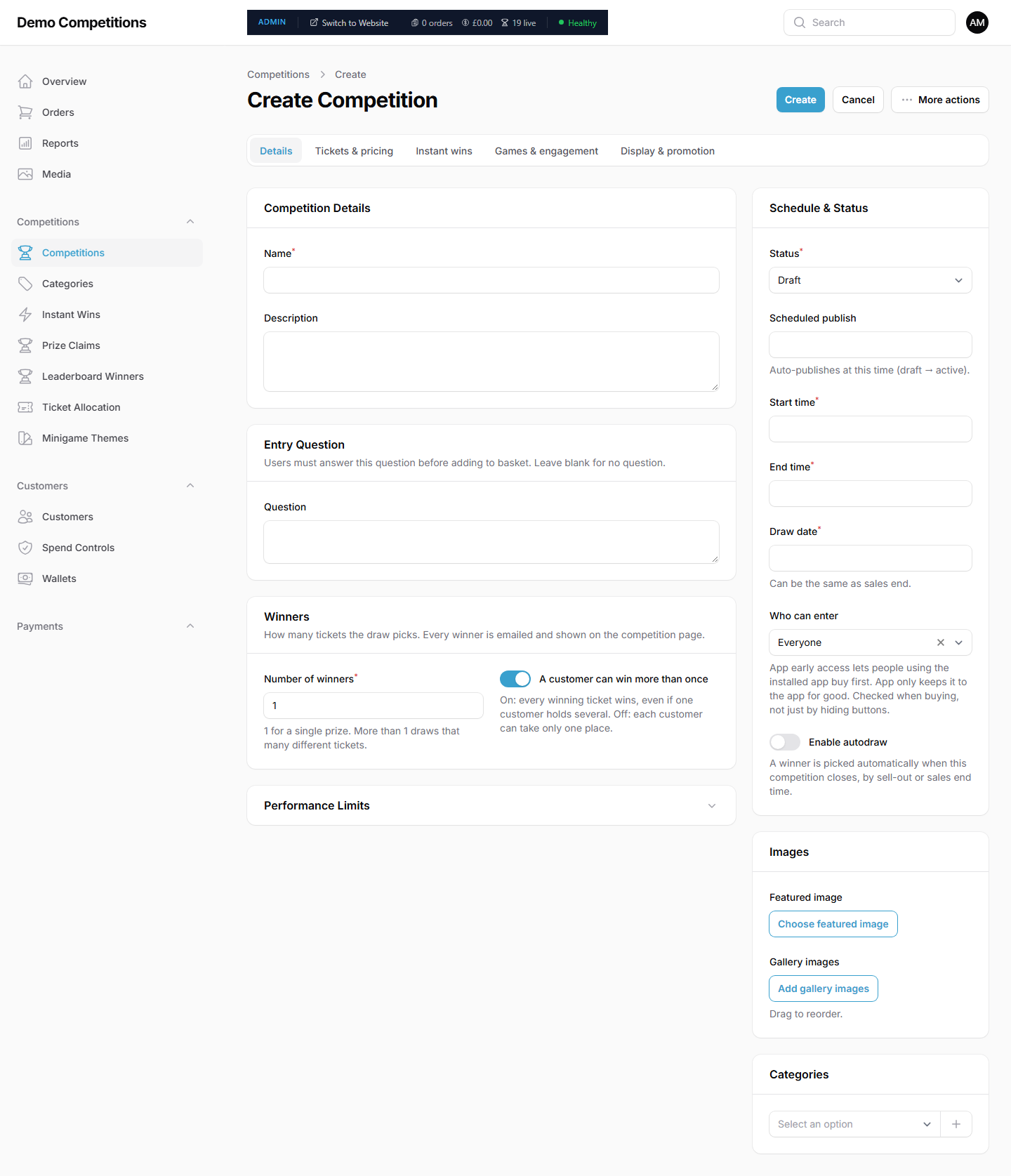
On the Details tab, type a Name and a Description. A red star beside a label means you must fill it in.
Open the Tickets & pricing tab. Set the ticket price, the total number of tickets and the maximum tickets per person. The maximum per person must be filled in.
In the panel on the side, under Schedule & Status, fill in the three required dates:
- Start time, when ticket sales begin.
- End time, when ticket sales end.
- Draw date, when you will draw the winner. It can be the same as the end time.
Number of winners is already set to 1. Leave it as it is for a single prize.
Add a Featured image in the panel on the side.
Click Create.
Wait for the tickets to be prepared
When you create the competition, your site prepares its ticket numbers. A message tells you "Ticket pool generation started". A competition cannot be put on sale until this has finished. A large competition takes longer. The page shows how far along it is.
Put it on sale
- When preparation has finished, open the competition.
- In Schedule & Status, set the Status to Active, or give it a start time so it goes on sale by itself.
- Click Save changes.
New competitions start as Draft. A draft does not appear to customers.
Check it on your live site
Open your site and find the competition. Look at it on a phone as well as a computer. Check the price, the picture, the number of tickets and the end date.
When it ends
- The competition closes by itself at the end time you set, or as soon as it sells out. To stop sooner, open the More actions menu and choose Close Now.
- Draw the winner. If you switched on Enable autodraw, the winner is picked automatically when the competition closes. Otherwise draw it yourself. See Draws and winners.
- If you offered prizes that need sending, see Prize Claims under Competitions.
What your customers will see
Once the competition is Active, customers see it on your site. They can choose how many tickets to buy, add them to their basket and pay. If you added an entry question, they must answer it first.
Tips
- Start with a small competition and look at every screen as a customer would.
- Check the dates carefully. A competition ends at the end time you set.
- You can copy a competition you are happy with. See Competitions.
Common questions
Why does my competition not show on my site? It may still be a Draft, it may not have reached its start time yet, or its tickets may still be being prepared.
Can I change the price after I start selling? You can edit it on the Tickets & pricing tab, but customers who have already paid keep what they paid. Once tickets have sold, the total number of tickets can only go up, not down.
Can I delete a competition? Only before anyone has ordered. After that, close it instead.