

Colour mode
Create a competition
A competition is what your customers buy tickets for. You set it up on one form. This guide takes you through everything on it, in the order you will meet it: the details, an entry question, the price and limits, offers on the price, the dates, and putting it on sale.
Before you start
- You need to be an admin. A moderator can only do this if the owner has switched on "Create and edit competitions, categories and instant-win prizes".
- Have the prize details, the ticket price, how many tickets you will sell and a picture ready.
- Decide your start, end and draw dates.
Open the form
- In the admin menu, open Competitions, then Competitions.
- Click New competition.
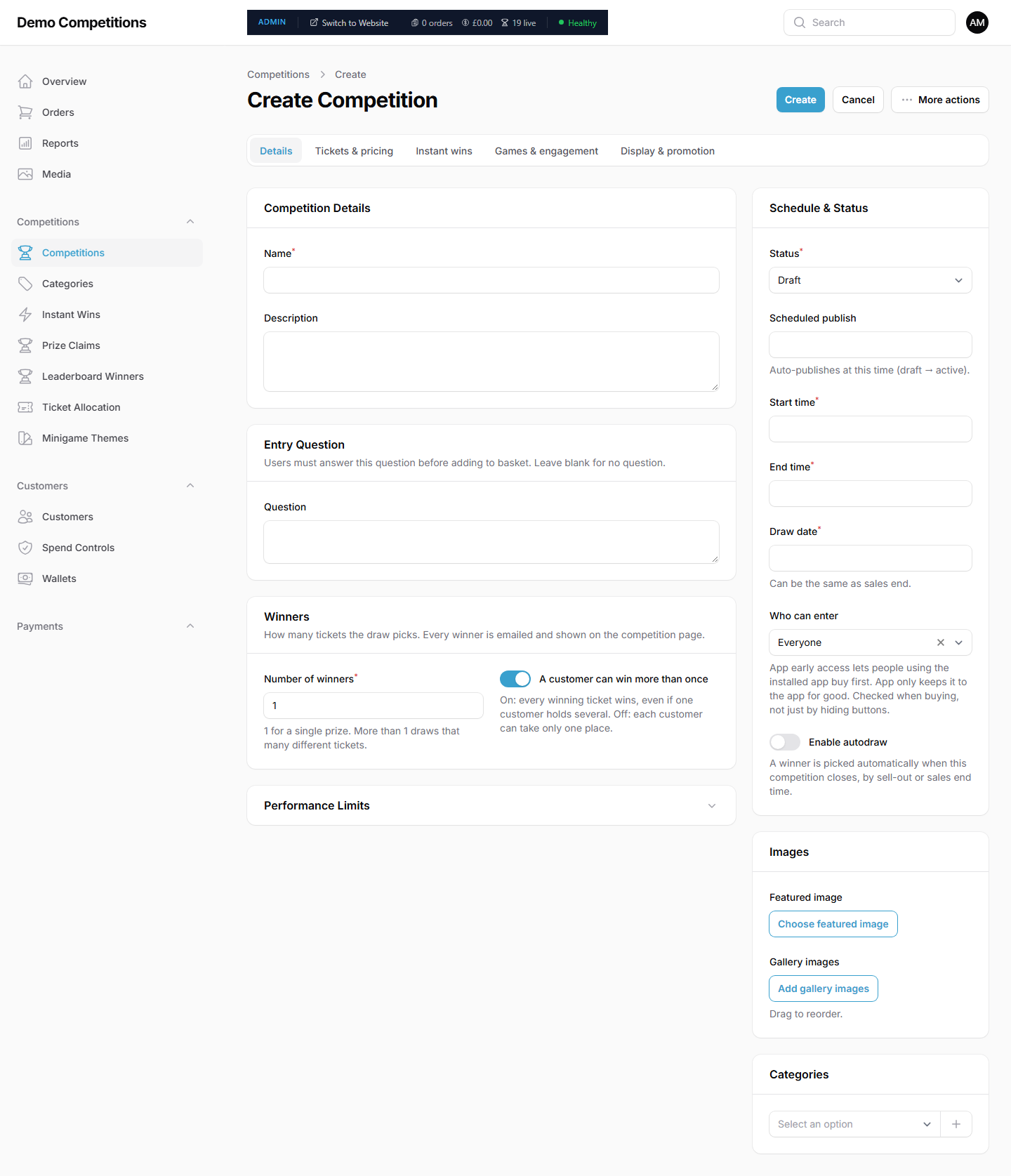
You will see the page Create Competition with five tabs: Details, Tickets & pricing, Instant wins, Games & engagement and Display & promotion. A red star beside a label means you must fill it in.
Fill in the details
On the Details tab:
- Type the Name. This is the title customers see. Required.
- Type a Description.
- Under Winners, check Number of winners. It starts at 1, which is right for a single prize. A higher number draws that many different tickets. The switch A customer can win more than once controls whether one customer can take several places.
Add an entry question
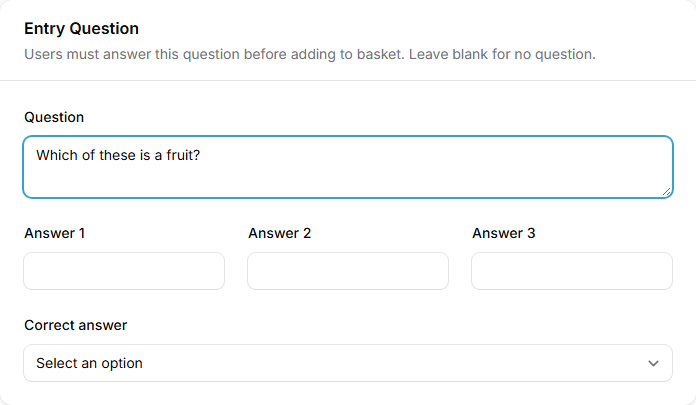
An entry question is a question customers answer before they can add tickets to their basket. It is optional. To have no question, leave the box empty.
- On the Details tab, find the Entry Question section.
- Type your Question.
- Type up to three answers in Answer 1, Answer 2 and Answer 3.
- Choose the Correct answer.
Decide what happens to wrong answers
This is a setting for your whole site, not for one competition.
- Open Settings, then Business & Site Settings.
- Find the section Entry Question.
- Look at the switch Allocate tickets for incorrect answers.

- On (the default). A customer who answers wrongly still gets their tickets, and those tickets can win.
- Off. A customer who answers wrongly cannot buy. They are told the answer is incorrect and asked to try again.
Which is right for you is your decision. If you are unsure how this fits with your terms and conditions, ask your legal adviser.
Set the price, number of tickets and limits
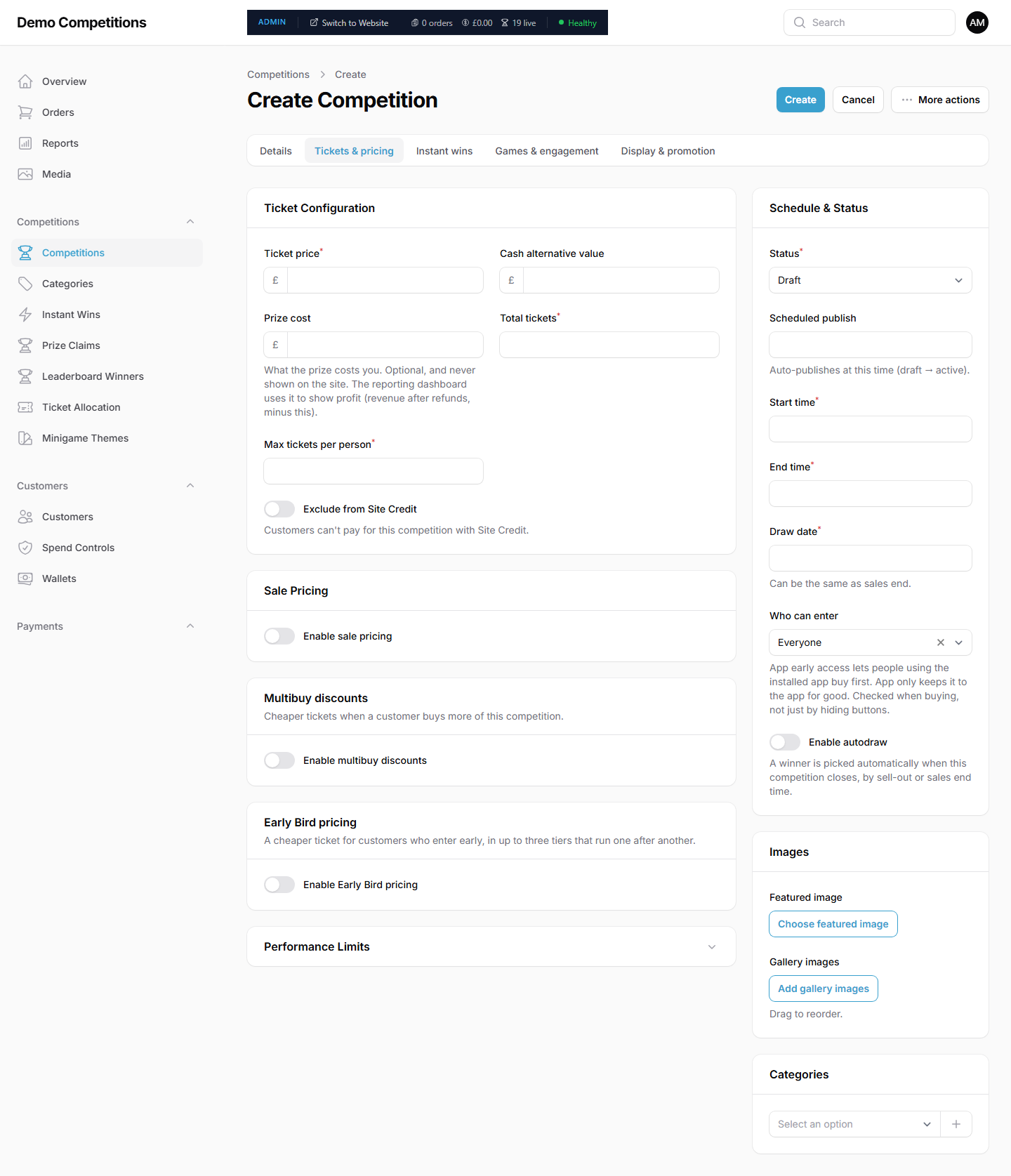
Open the Tickets & pricing tab. Under Ticket Configuration, fill in:
- Ticket price. In pounds. Required.
- Total tickets. How many you will sell. Required.
- Max tickets per person. The most one customer can hold. Required.
The other fields are optional:
- Cash alternative value. The cash amount you are offering instead of the prize. It is shown to customers on the competition page. The platform does not pay it out, so you arrange it with the winner yourself.
- Prize cost. What the prize costs you. It is never shown on your site. The reporting dashboard uses it to show your profit.
- Exclude from Site Credit. Switch this on if customers must not pay for this competition with Site Credit.
Know the rules for Total tickets
- You cannot set it lower than the number already sold.
- You cannot set it lower than the highest winning ticket number of any instant win.
- Once anything has sold, you can only raise it, not lower it.
- You cannot lower it while the tickets are still being prepared.
Know how Max tickets per person is counted
It counts the tickets a customer already holds, plus tickets in orders they have started but not yet paid for. A customer who has reached the limit cannot add more.
Use Performance Limits for very large competitions
Open the Performance Limits section to control how fast tickets can be bought.
- Use performance limits. Switched on for you automatically once a competition has 100,000 or more tickets.
- Max tickets per order. Leave it blank for the automatic default. The highest you can set is 15,000.
- Order cooldown (seconds). How long a customer must wait between orders.

Add offers to the price
The same tab has three optional ways to lower the price. You can use one, two or all three. The guides under Offers and promotions cover them in more depth.
Sale price
A lower ticket price for a set time.
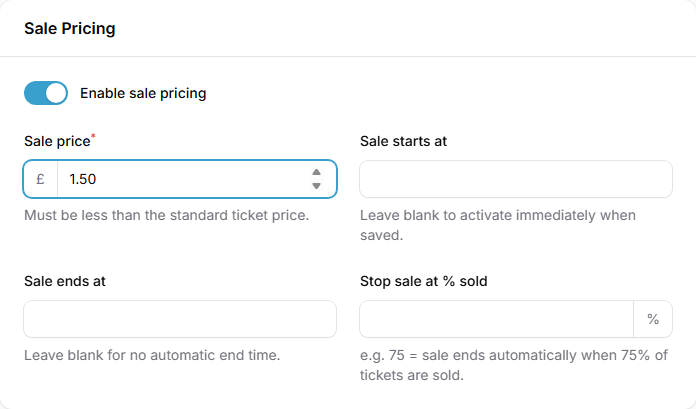
- Under Sale Pricing, switch on Enable sale pricing.
- Type the Sale price. Required. It must be less than the standard ticket price.
- Optionally set Sale starts at. Leave it blank to start the sale as soon as you save.
- Optionally set Sale ends at. Leave it blank for no automatic end.
- Optionally set Stop sale at % sold. For example, 75 ends the sale when 75% of the tickets have sold.
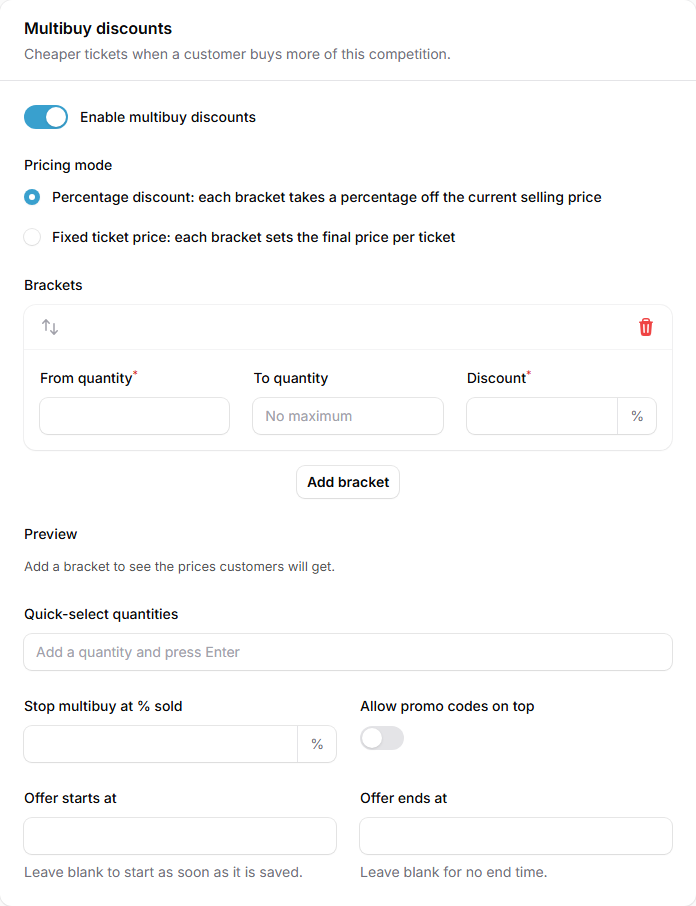
Multibuy discounts
A cheaper ticket when a customer buys more of this competition.
- Switch on Enable multibuy discounts.
- Choose the Pricing mode:
- Percentage discount. Each bracket takes a percentage off the current selling price.
- Fixed ticket price. Each bracket sets the final price per ticket.
- Under Brackets, fill in From quantity, To quantity (leave it blank for no maximum) and the Discount. Click Add bracket to add more.
- Check the Preview to see the prices customers will get.
- Optionally add Quick-select quantities. Type a quantity and press Enter. These are quantities offered as quick choices.
- Optionally set Stop multibuy at % sold, and Offer starts at and Offer ends at.
- Switch on Allow promo codes on top only if customers should be able to use a promo code as well.
If you change the pricing mode after you have set brackets, you must tick a box to confirm you have checked the bracket values for the new mode.
Early Bird pricing
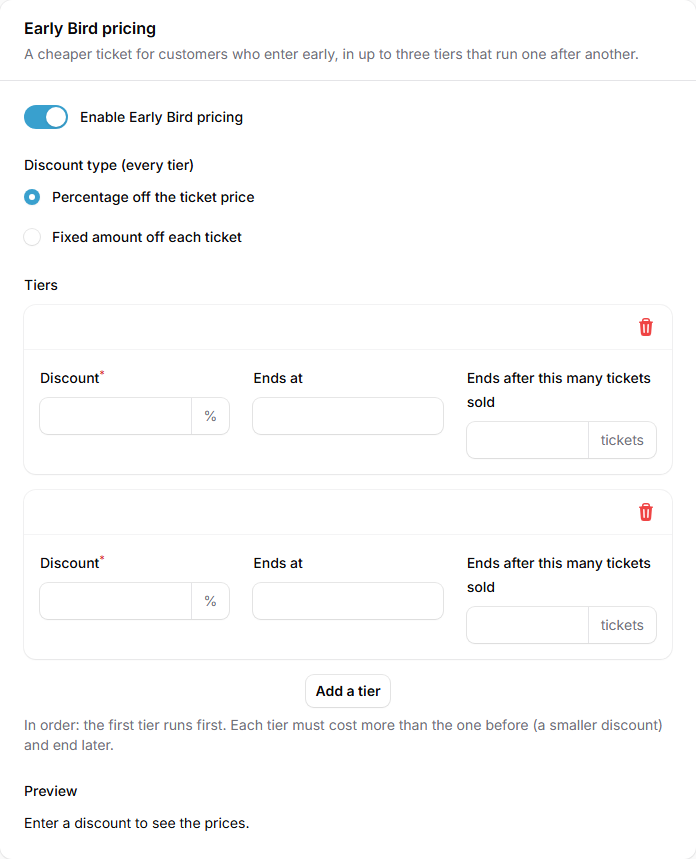
A cheaper ticket for customers who enter early, in up to three tiers that run one after another.
- Switch on Enable Early Bird pricing.
- Choose the Discount type (every tier): Percentage off the ticket price or Fixed amount off each ticket.
- Under Tiers, fill in the Discount for the first tier. Then say when it ends, using Ends at (a date and time), Ends after this many tickets sold, or both.
- Click Add a tier for the next one, up to three.
- Check the Preview.
The first tier runs first. Each tier must cost more than the one before (a smaller discount) and end later.
How the offers work together
- Early Bird. Each Early Bird ticket costs its Early Bird price, which is worked out from the regular ticket price. If the sale or Multibuy price is lower, the customer pays that instead. Early Bird is never added on top of another discount on the same ticket.
- Sale and Multibuy. These work together. A Multibuy bracket starts from the price customers would otherwise pay, so while a sale is running, a percentage Multibuy takes its percentage off the sale price. A fixed Multibuy price is never higher than the current selling price.
- Promo codes. A promo code cannot be used on tickets at an Early Bird price. It cannot be combined with a Multibuy price unless you have switched on Allow promo codes on top. On a competition that has a sale price, a promo code only works if the code itself is set to allow that.
Set the dates and publish
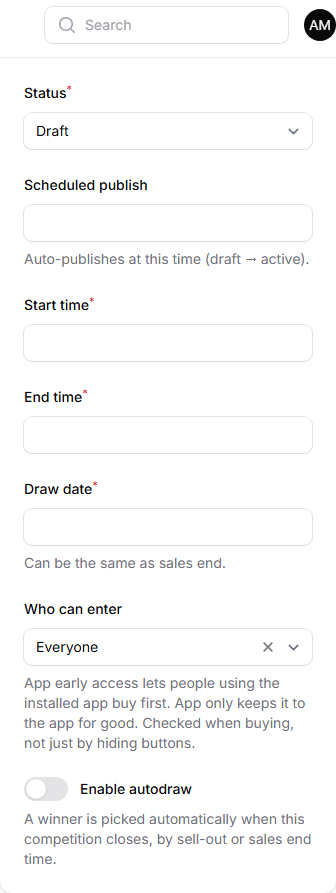
In the Schedule & Status panel on the right of the form:
- Set the Start time, when ticket sales begin. Required.
- Set the End time, when ticket sales end. Required. It must be after the start time.
- Set the Draw date, when you will draw the winner. Required. It can be the same as the end time.
- Choose the Status.
The Status has four choices.
- Draft. Saved but not visible to customers. New competitions start here.
- Active. On sale.
- Closed. Ticket sales have stopped and the competition is waiting for its draw.
- Completed. The draw has been made.
Publish now
Set Status to Active and click Save changes.
Publish later
- Scheduled publish. Pick a time in this box. The competition moves from Draft to Active by itself at that time. This is the only thing that publishes a draft for you. A draft that only has a future Start time stays a draft until you set it to Active yourself.
- Active with a future start time. Customers can see the competition and a "Starting soon" countdown, but they cannot buy until the start time. Your site opens it for sale at that moment.
When you pick a future start time, the form sets the status back to Draft. If you want the countdown to show, change Status to Active after you choose the time.
Let it close and draw by itself
Switch on Enable autodraw if you want the winner picked automatically as soon as the competition closes. A competition closes by itself at the end time, or as soon as it sells out. See Draws and winners.
To stop sales sooner, open the More actions menu and choose Close Now. Only admins can do this, unless the owner has switched it on for moderators.
Add pictures, categories and the rest
In the side panel, add a Featured image and choose Categories. See Add pictures and categories. To limit who can buy, see Choose who can enter.
The Instant wins, Games & engagement and Display & promotion tabs are optional. See Instant wins and games and Feature a competition on your home page.
Save it
- Click Create at the top of the page.
- Your site starts making the ticket numbers. See Why a competition says it is preparing tickets.
If the form cannot be saved, the tab with the problem shows a red number. Open it and fix the fields marked in red.
What your customers will see
Once the competition is Active and has reached its start time, customers see it on your site. They see the ticket price and how many tickets are left, and any sale, Early Bird or Multibuy price. If you added an entry question, they must answer it before adding tickets to their basket. If they try to buy more than the limit, they are told they have reached it.
Tips
- Save as a draft first and check everything before you go live.
- Check the end time carefully. Sales stop exactly then.
- Use Duplicate to copy a competition you have already set up. See Duplicate a competition.
- Keep an entry question easy. It should not stop honest customers from entering.
Common questions
Can I change things after I create the competition? Yes. Open it from the list and click Save changes when you finish. Some things are limited once tickets have sold. For example, the total number of tickets can only go up.
Can I raise the number of tickets after launch? Yes. Raise Total tickets and save. More ticket numbers are made for you.
Why can customers not buy my active competition? Its start time may be in the future, or its tickets may still be being prepared.
Does changing the price change what customers have already paid? No.
Do I have to fill in every tab? No. Only the fields marked with a red star are required.