

Colour mode
Sign in to your admin
You sign in to your admin with the email address and password on your staff account. Some sites also ask for a six digit code that we email you. This guide covers both.
Before you start
- You need a staff account. Ask the owner of your site if you do not have one. Only Raffinity can add new admins, so the owner contacts us.
- You need to be able to open the email inbox for your staff account, in case your site asks for a code.
Sign in
- Open your site address followed by
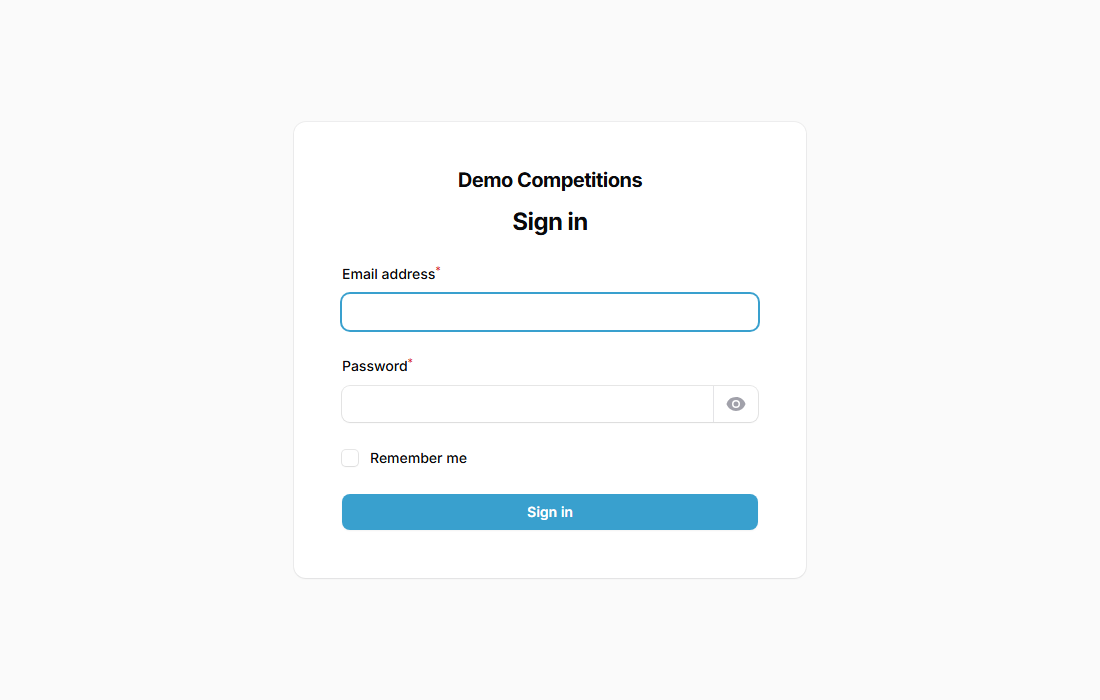
/admin. For example, if your site iswww.yoursite.co.uk, go towww.yoursite.co.uk/admin. - Type your email address and password.
- Click the sign-in button.
- If your site uses sign-in codes, you will see the message "We have emailed you a sign-in code." It can take a minute to arrive. Open the email and type the six digit code into the Sign-in code box.
- Click Confirm code.
If you forget your password
Click Forgot password? on the sign-in form. We email you a link to choose a new one.
If the code does not work
- The code is six digits and lasts 10 minutes.
- After five wrong tries the code is cancelled.
- If you see "That code is not right or has expired", click Start again, then sign in again to get a new code.
- We send at most six codes an hour to the same account.
If you cannot get a code at all, check your spam folder and then ask an admin or Raffinity to help.
What your customers will see
Customers sign in on your site with their own accounts. They do not use the admin. If your site uses sign-in codes, staff who sign in on the website also need a code.
Tips
- Use a strong password that you do not use anywhere else.
- Sign out when you finish on a shared computer.
Common questions
Who decides whether we use sign-in codes? An admin turns them on or off in Settings, then Business & Site Settings, in the section Staff sign-in. The setting is called "Ask team members for an emailed code when they sign in". It is off until someone switches it on. It cannot be switched on until your site is set up to send real emails. See Your team and settings.
Does everyone on the team need to use the code? Yes. When the setting is on, it applies to every staff account.