

Colour mode
Add pictures and categories
Good pictures help a competition sell. Categories help customers find it. Both are set in the side panel of the competition form.
Before you start
- Have your pictures ready, or upload them to the Media library first.
- Create your categories if you need new ones. See Manage your categories.
Add a featured image
- Open your competition.
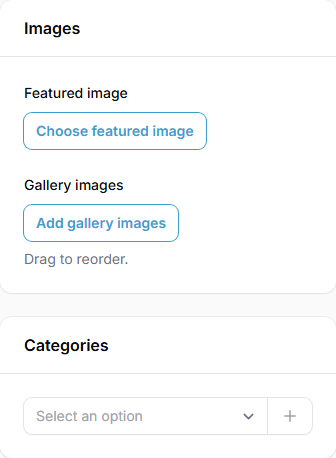
- In the Images panel, click Choose featured image.
- Pick a picture from your library, or upload a new one.
- Click Save changes.
The featured image is the main picture for the competition on your site.
Add gallery pictures
- In the Images panel, click Add gallery images.
- Pick one or more pictures.
- Drag the pictures into the order you want. They are shown in that order.
Choose categories
- In the Categories panel, click Select an option.
- Choose a category. You can choose more than one.
- Need a new category? Click the + button beside the box. You will be asked for a Name, Slug and Sort order.
- Click Save changes.
What your customers will see
The featured image is the competition's main picture on your home page and on the competition page. Gallery pictures appear on the competition page. Categories appear as tabs on your home page, so customers can filter the competitions.
Tips
- Use clear, bright pictures of the actual prize.
- Use the same style and shape for every competition so your site looks neat.
- Check how the picture looks on a phone.
Common questions
Where do my pictures live? In the Media item at the top of your admin menu.
Can one competition be in several categories? Yes.