

Colour mode
Manage your categories
Categories group your competitions, for example Cash, Cars or Holidays. Customers use them to filter the competitions on your home page. You manage them in one place.
Before you start
- You need to be an admin. A moderator needs the switch for creating and editing competitions, categories and instant-win prizes.
See your categories
- In the admin menu, open Competitions, then Categories.
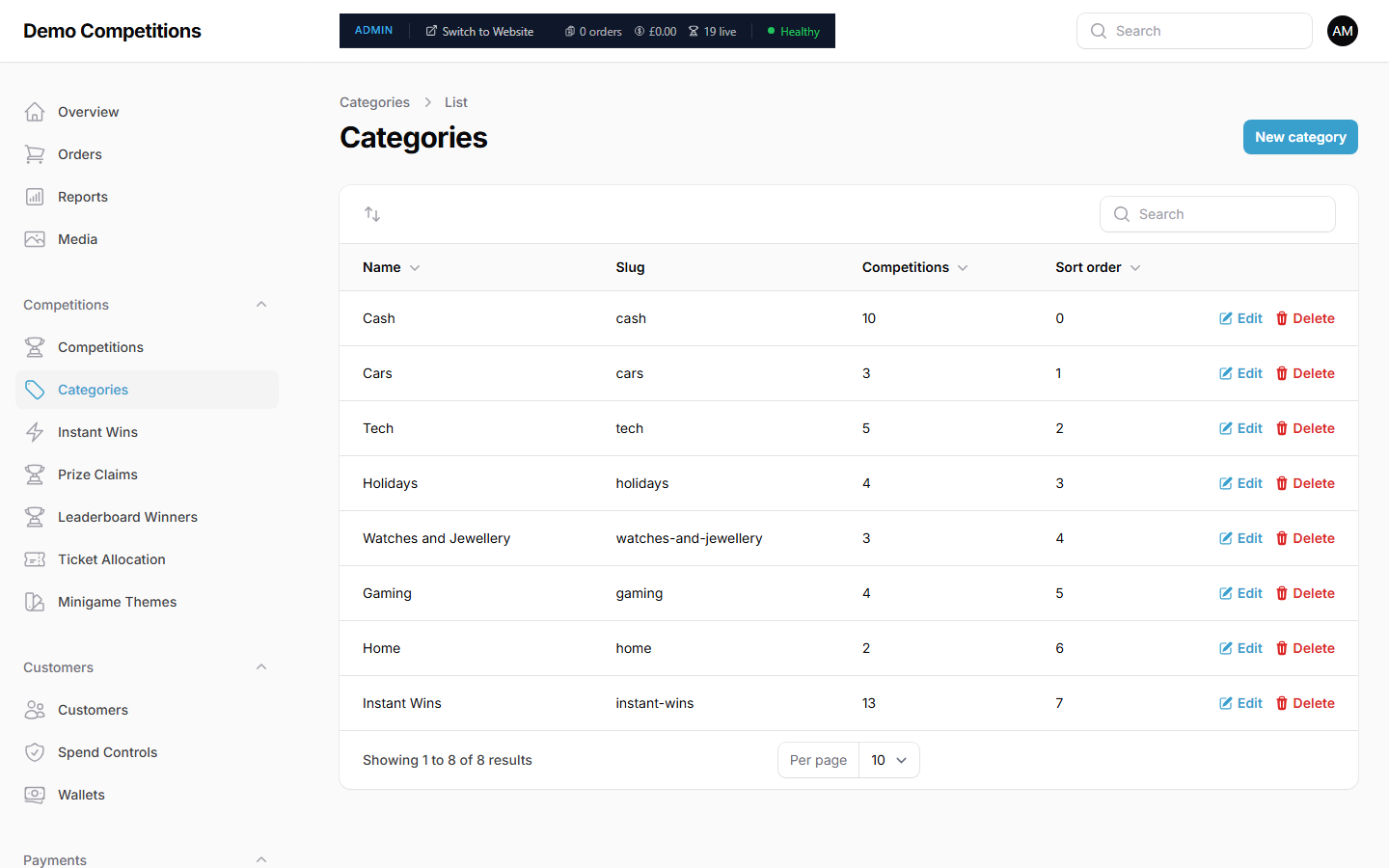
- The list shows each category's Name, Slug, the number of Competitions in it and its Sort order. Use the Search box to find one.
Add a category
- Click New category.
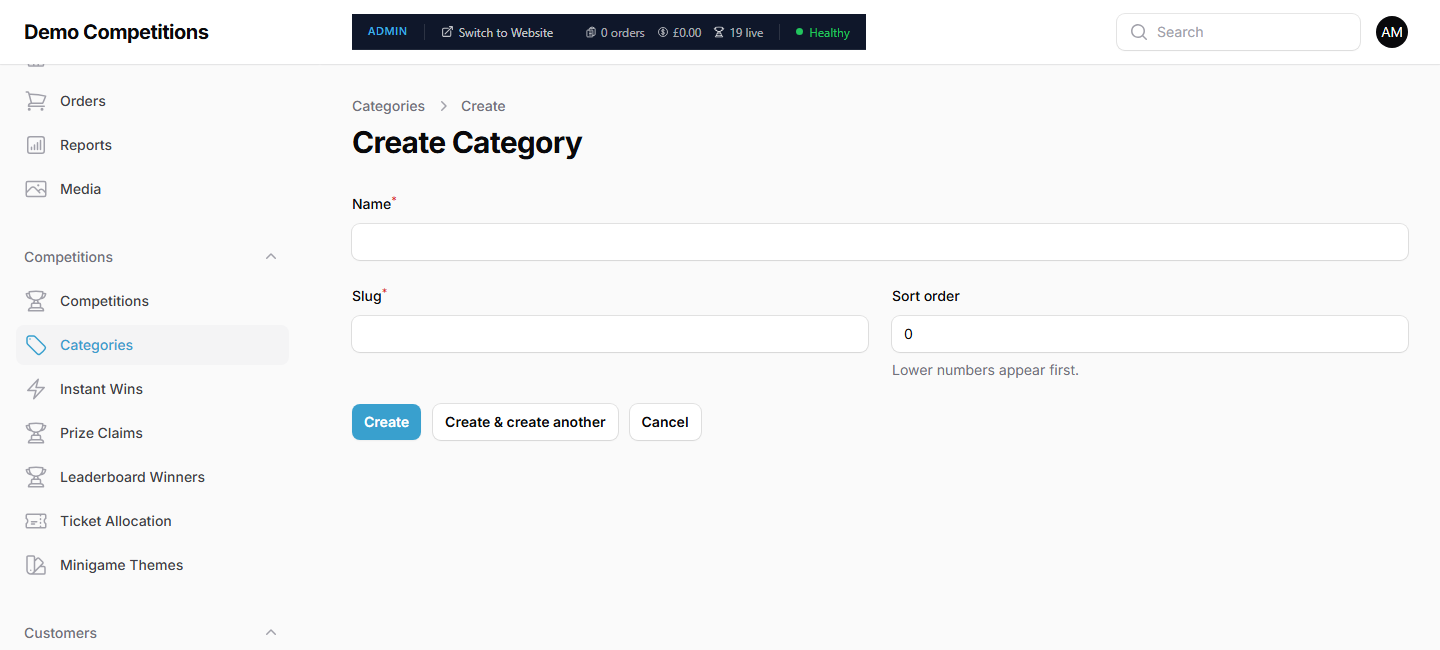
- Type a Name. Required.
- Type a Slug. Required. This is the short version used in the web address, for example
watches-and-jewellery. - Set the Sort order. Lower numbers appear first.
- Click Create. Or click Create & create another to add more.
Change or reorder a category
- Click Edit beside a category to rename it or change its sort order.
- To reorder by dragging, click the reorder icon at the top left of the list, then drag the rows.
Delete a category
You can only delete a category that is empty. Check the Competitions column. If the number is above 0, the Delete button is greyed out, and pointing at it tells you how many competitions are still in the category.
To empty a category, open each competition in it and change its Categories (see Add pictures and categories). When the count reaches 0, click Delete and confirm.
What your customers will see
Categories appear as tabs on your home page, in your sort order. Customers click one to see only those competitions.
Tips
- Keep the list short. A handful of clear categories works better than many.
- A category with no live competitions has nothing to show, so think about whether it is needed.
- You can also delete a category from its edit page. The same rule applies.
Common questions
Can I add a category while I am creating a competition? Yes. Use the + button beside the Categories box. See Add pictures and categories.
Can a competition be in more than one category? Yes.